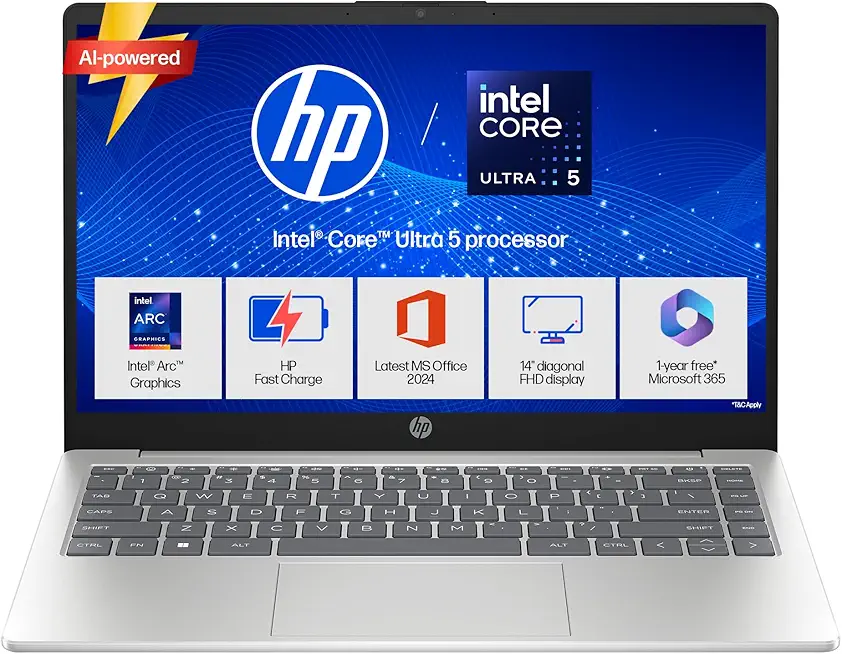
A sluggish HP laptop can turn a simple task into a test of patience. When your computer takes forever to start, freezes during video calls, or struggles to switch between browser tabs, it doesn’t just waste time—it drains your productivity. The good news? In most cases, a slow laptop isn’t a lost cause. Before you start shopping for a replacement, there are several proven ways to restore its speed.
This guide provides clear, actionable steps to make your HP laptop faster, from simple software tweaks to impactful hardware upgrades. We’ll help you diagnose the problem and decide whether to fix your current device or explore newer models.
1. Tame the Startup Stampede
One of the biggest culprits behind a slow boot-up is the army of programs launching automatically when you start your laptop. Many apps sneakily add themselves to this list, quietly consuming memory and processing power in the background.
The Fix: Open Task Manager (press Ctrl + Shift + Esc), go to the “Startup” tab, and disable any applications you don’t need immediately upon booting, like messaging apps or media players. You’ll likely see a faster startup time right away.
2. Give Your Hard Drive Room to Breathe
A storage drive that’s bursting at the seams can cripple your system’s performance. Windows needs free space for temporary files and virtual memory. When space is critically low, your laptop has to work much harder, leading to slowdowns. Aim to keep at least 20-25% of your drive free.
The Fix: Use the built-in Disk Cleanup tool to remove temporary files, empty the Recycle Bin, and clear system caches. Also, uninstall programs you no longer use and consider moving large files like movies or old projects to an external drive.
3. Keep Your Software and Drivers in Check
Outdated software, especially critical drivers and Windows itself, can lead to bugs, security holes, and performance issues. HP regularly releases driver updates specifically for their hardware to ensure everything runs smoothly and efficiently.
The Fix: Make sure Windows Update is set to install updates automatically. You can also use the official HP Support Assistant tool to scan for and install the latest drivers for your specific laptop model.
4. The Ultimate Speed Upgrade: Switch to an SSD
If your HP laptop still relies on a traditional hard disk drive (HDD), this is the single most effective upgrade you can make. Replacing an HDD with a solid-state drive (SSD) is like giving your laptop a new brain. SSDs have no moving parts, resulting in dramatically faster boot times, near-instant application launches, and an overall snappier feel.
The Fix: Consider upgrading to a reliable SSD.
· For great value and performance, the Crucial MX500 is a popular and trusted choice for breathing new life into older laptops.
· For top-tier speed, the Samsung 970 EVO Plus (NVMe M.2) is a fantastic option if your HP laptop has an M.2 slot, offering blazing-fast data transfer.
5. Boost Your Multitasking with More RAM
Insufficient RAM (memory) is a common bottleneck, especially if you’re a student, professional, or remote worker juggling multiple browser tabs, office applications, and video calls. When you run out of RAM, your laptop starts using the hard drive as a crutch, which is much slower.
The Fix: Upgrading your RAM is a highly effective hardware fix. Check your laptop’s specifications to see the maximum RAM it supports.
· A reliable choice for a performance boost is Crucial RAM, known for its compatibility and easy installation guides. For most users, upgrading to 16GB provides a smooth multitasking experience.
6. Scan for Hidden Performance Hogs
Malware, adware, and even poorly coded background processes can silently eat up your system resources. You might not even know they’re there, but your laptop certainly feels the drag.
The Fix: Run a full system scan with Windows Security (built into Windows) or another trusted antivirus tool. Also, check your Task Manager for any unfamiliar processes consuming high amounts of CPU or memory.
7. Optimize Your Power Settings
By default, many HP laptops use a “Power Saver” plan to extend battery life. While great for unplugged use, this mode limits your processor’s performance, making the system feel sluggish even when it’s plugged into an outlet.
The Fix: When you’re working at your desk, click the battery icon in the system tray and slide the power mode to “Best Performance.” This allows your laptop to use its full processing power.
Quick Fix Checklist to Speed Up Your HP Laptop
· Disable unnecessary startup programs.
· Free up disk space with a cleanup.
· Run Windows Update and HP driver updates.
· Perform a full malware scan.
· Switch your power plan to “Best Performance.”
· Consider upgrading to an SSD (like the Crucial MX500) for a massive speed boost.
· Add more RAM (like Crucial RAM) for better multitasking.
When to Call It: Is an Upgrade the Smarter Choice?
Sometimes, even after all these fixes, a very old laptop (5+ years) may still struggle with modern software demands. If your device has outdated hardware that can’t be upgraded (like a soldered processor) or no longer supports the latest Windows updates, investing in a new machine might be the better long-term solution.
Newer HP laptop models come with:
· Faster, more efficient processors.
· Blazing-fast SSDs as standard.
· Longer battery life and improved displays.
· Modern features like fingerprint readers and better webcams for video calls.
If you decide to upgrade, explore the latest HP laptops for 2025. They are strong contenders for the best laptops of the year, especially for work, study, and creativity.
Frequently Asked Questions (FAQs)
1. How can I make my HP laptop faster without being technical?
Start with the easiest software fixes: disable startup apps, use Disk Cleanup, and ensure Windows is updated. These steps require no technical knowledge and can make a noticeable difference.
2. Is upgrading to an SSD worth it for an old HP laptop?
Absolutely. It’s widely considered the most impactful upgrade you can make. An SSD will breathe new life into an old machine, making it feel faster than a fresh software install ever could.
3. How much RAM do I need for smooth performance?
For basic tasks like browsing and email, 8GB is the minimum. For multitasking, office work, and light creative work, 16GB is the sweet spot.
4. My laptop is still slow after trying these fixes. What now?
If you’ve tried the software fixes and your hardware (like RAM and HDD) is at its limit, it may be time to consider a new laptop. Compare the cost of upgrades to the price of a modern, faster model.
Final Thoughts
A slow HP laptop doesn’t always mean it’s time for the scrap heap. Simple software maintenance can often restore lost speed. For a more dramatic performance leap, hardware upgrades like installing an SSD or adding RAM are fantastic investments that can extend your device’s life for years.
However, if your laptop is ancient and struggles with everyday tasks, exploring the latest HP laptop models is a wise move. They offer the speed, efficiency, and features needed for today’s computing demands.
Ready to upgrade or need a reliable new laptop? You can explore a wide range of genuine HP laptops on Amazon by clicking here: https://amzn.to/4cdd2WJ (affiliate link)
Disclaimer: As an Amazon associate I earn from qualifying purchase.